 Assemble3
Getting started
Assemble3 is a game editor that runs in your browser. You build the scene by dragging objects in and write the logic as events: condition → action, no code.
What you need
- A current browser (Chrome, Edge or Firefox). Nothing to install.
- A free account if you want to keep projects in the cloud. Without one you can still create and test games and save
.a3pfiles on your computer.
Open the editor at assemble3.com/editor. The Start page comes first:
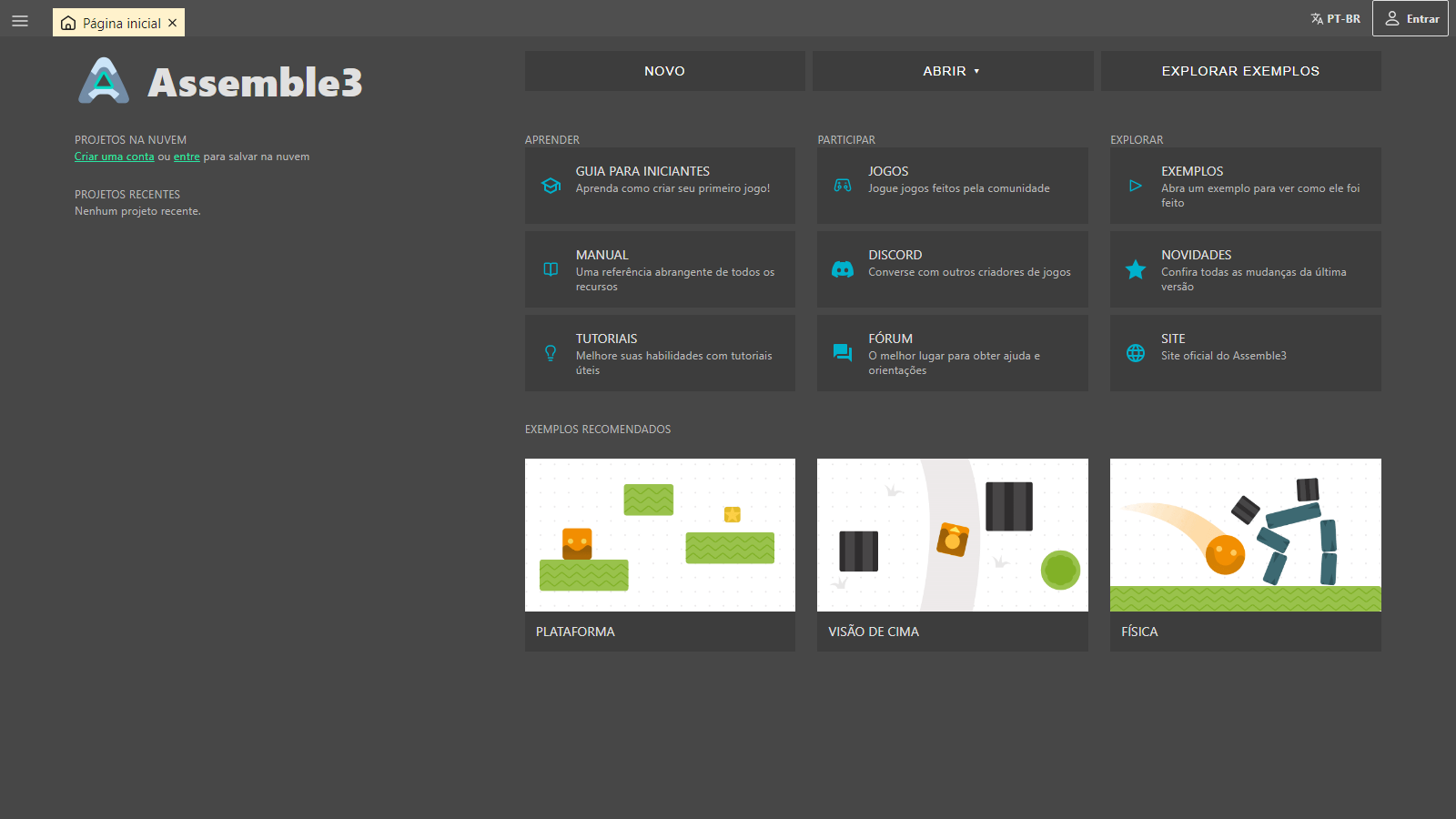
| Button | What it does |
|---|---|
| New | Creates a blank project. |
| Open | Opens an .a3p file from your computer or a cloud project. |
| Explore examples | Lists ready-made games to open and study. |
| Cloud projects | Your projects saved to the account (log in to see them). |
Tip: opening an example is the fastest way to learn. The Platformer example has a character that jumps and coins to collect, in just 8 events.
Create a project
- Click New.
- Give the project a name and pick a screen size. Landscape 720p suits most games.
- Click Create.
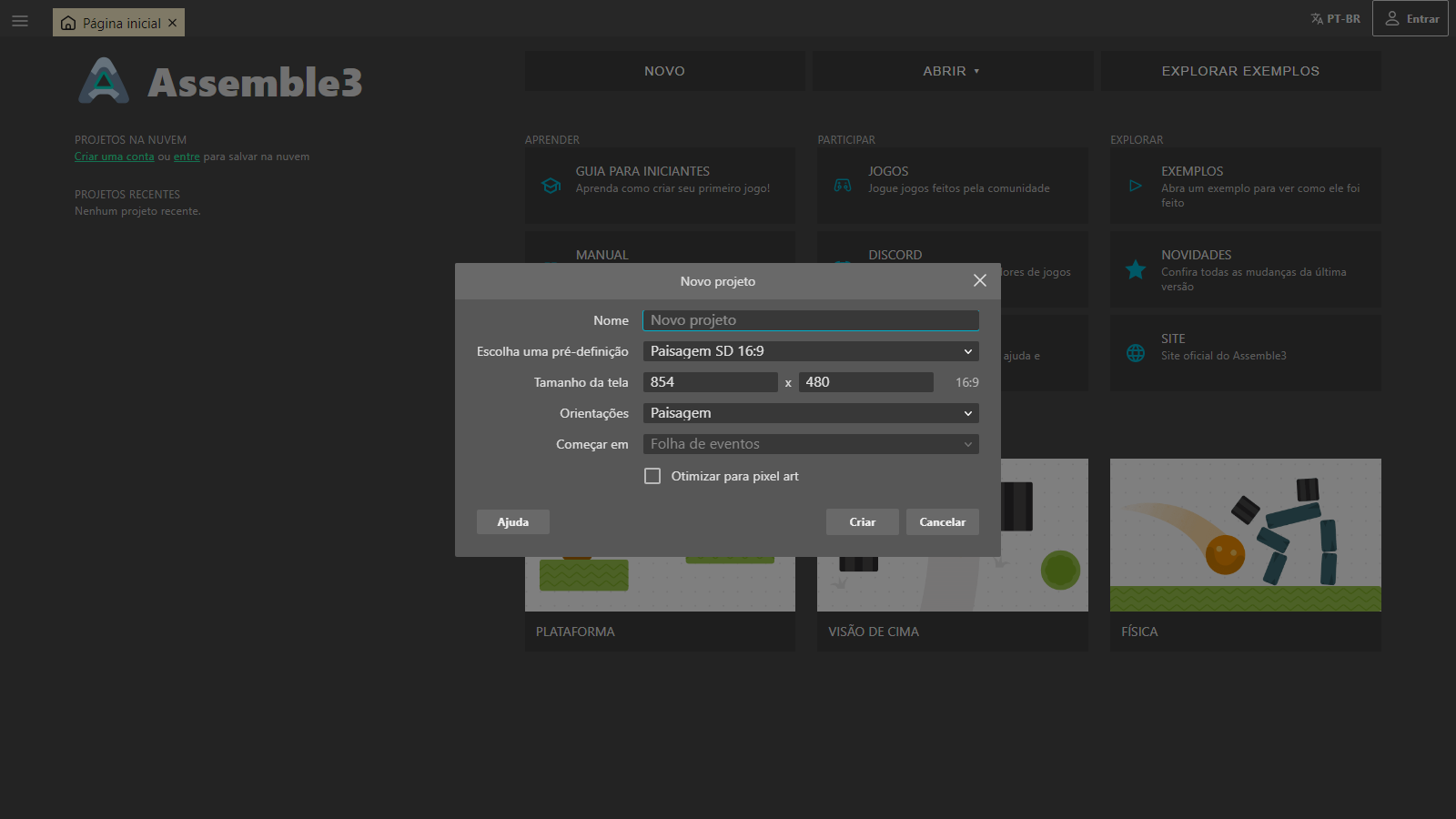
The editor opens with an empty layout (the game scene) and an empty event sheet, which holds that layout's logic.
Saving
- In the cloud: log in and save. The project shows up under Cloud projects on any computer.
- On your computer: the editor downloads an
.a3pfile. Open it later with Open → File….
The .a3p file is encoded on purpose, so opening it in a text editor will not help.
Plan limits
Every condition and every action counts as one event. The limit is 100 events for guests, 250 for free accounts and 500 for Premium. The counter is at the bottom of the event sheet. Students use their teacher's plan.
Next: get to know the interface.
The editor opens in Portuguese by default and its language can be changed. Button names in this wiki are the editor's English labels, and the screenshots show the Portuguese interface.