 Assemble3
Events: conditions and actions
The game's logic is written as events. An event says: when this is true (conditions), do that (actions).
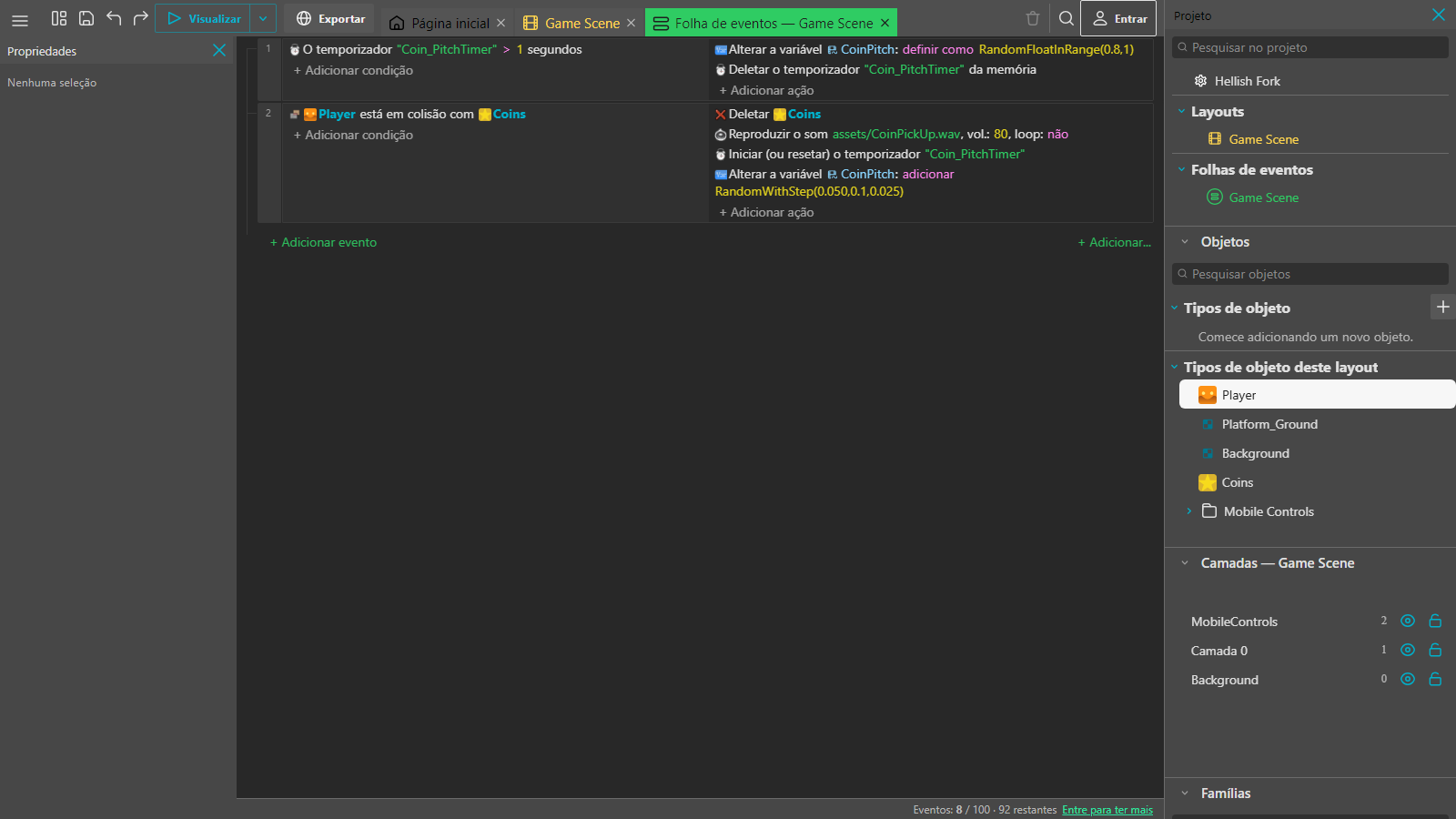
Reading event 2 in the picture: when the Player collides with Coins, then delete the coin, play a sound, restart a timer and change a variable.
Create an event
- Open the Event sheet tab.
- Click + Add event.
- Click + Add condition, pick an object, then the condition.
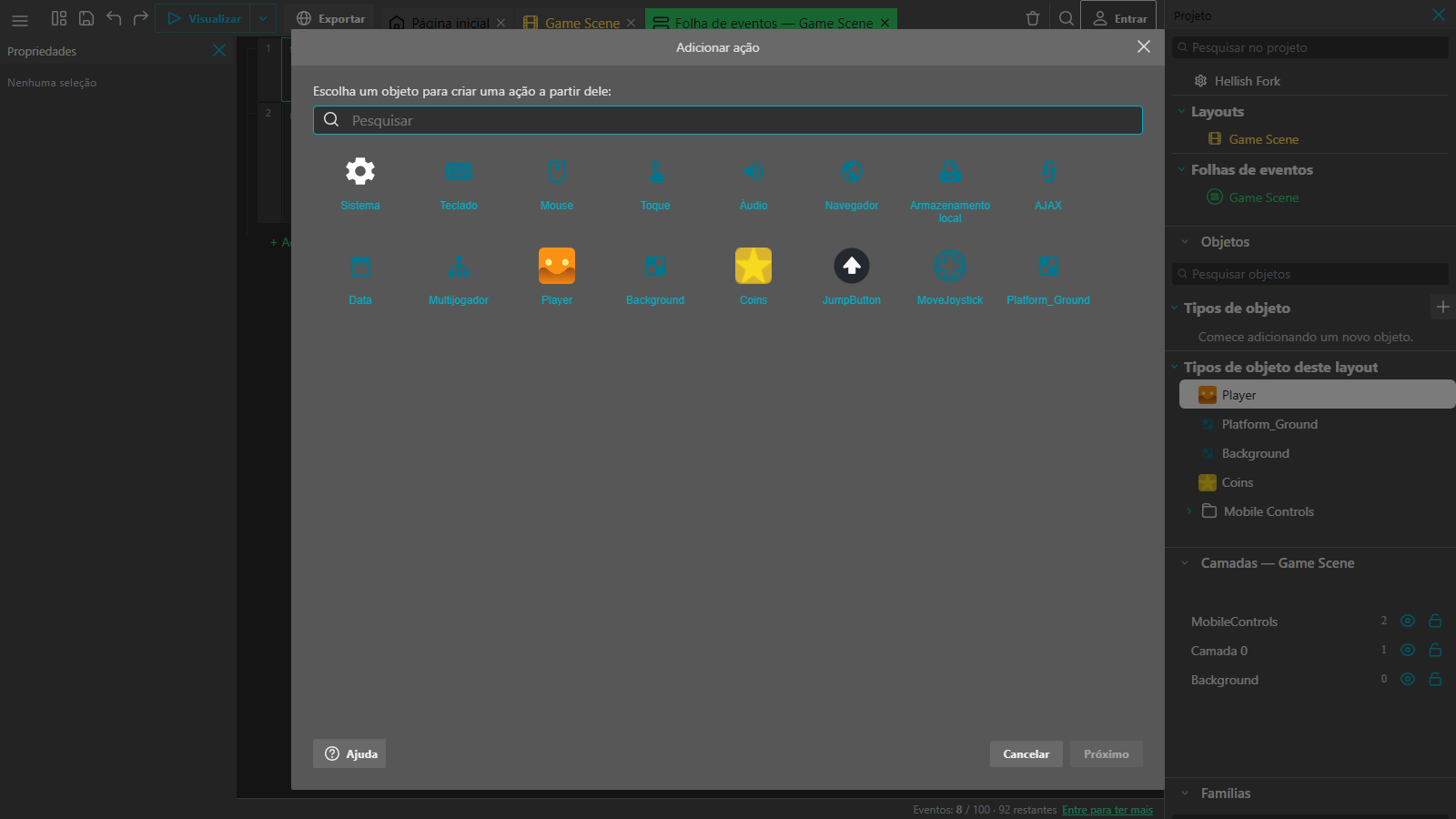
- Click + Add action, pick an object, then the action.
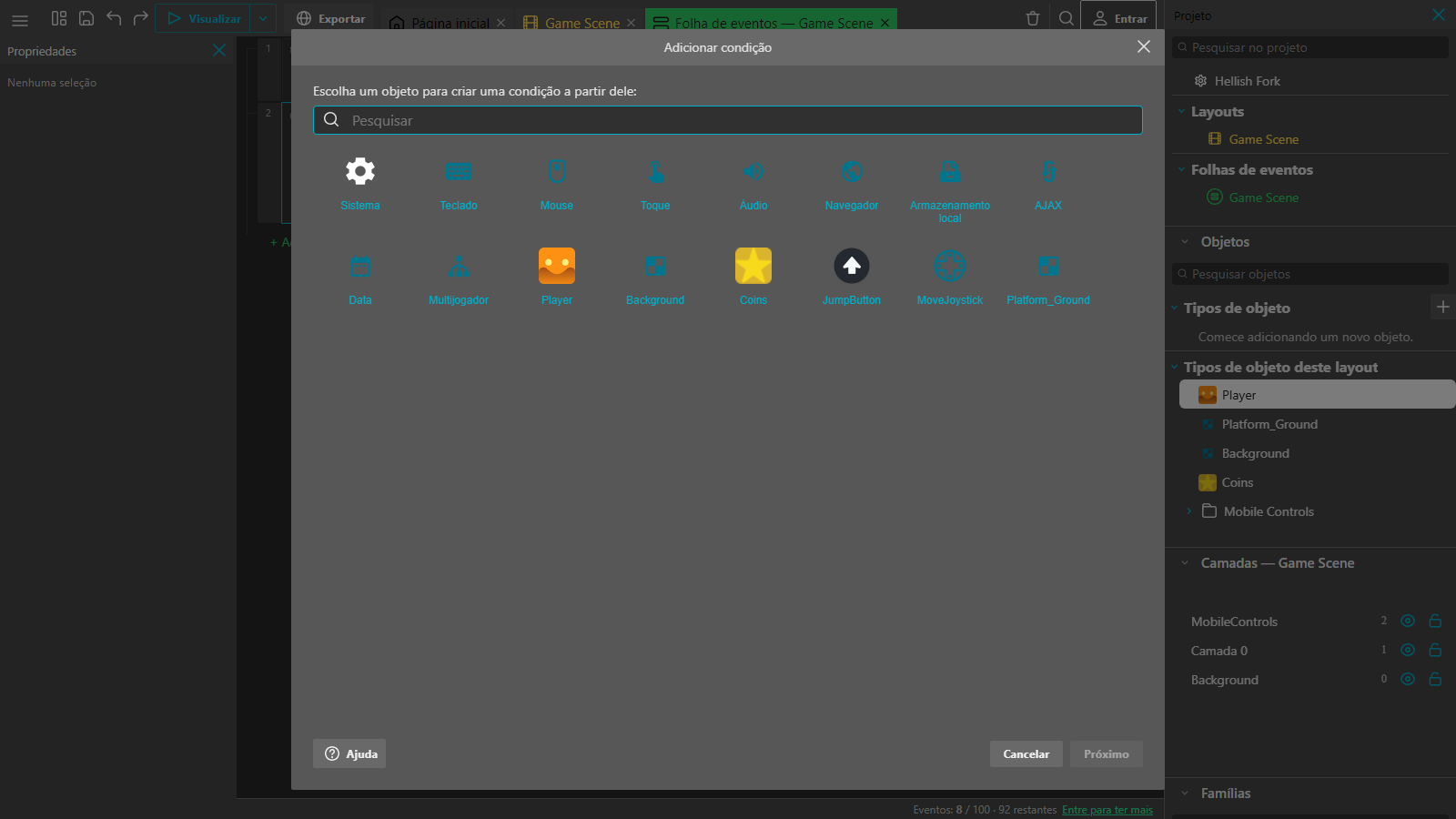
The first step is always choosing whose condition or action it is. System groups what belongs to no object (variables, layouts), and Keyboard, Mouse and Touch group the inputs. The rest are your project's objects.
How an event runs
- The game runs the whole sheet, top to bottom, every frame (about 60 times per second).
- An event with no conditions runs its actions every frame.
- With several conditions, all must be true (an "and").
- Actions run in the order they are written.
Objects in conditions
A condition about an object picks only the instances that meet it, and the event's actions apply to those. With 10 coins and one touching the player, only that one is deleted.
Sub-events
Use the event's menu to add a sub-event: it only runs if the parent event passed, and the objects the parent picked stay picked.
The "Else" event
An Else event right after another runs when the previous event's conditions were not met. It is added from the previous event's menu.
Only once
Conditions such as Key pressed stay true while the key is held, and the actions run every frame. To act just once, use Key just pressed (Keyboard) or, for any condition, the run-once condition found under System.
Comments and groups
Comments and groups organise the sheet and do not count toward the event limit. Use them often.
Tip: keep the game readable: one event per idea ("collect coin", "lose life") and a short comment on each block.