 Assemble3
Export and publish
When the game is ready, the top bar's Export button offers these paths:
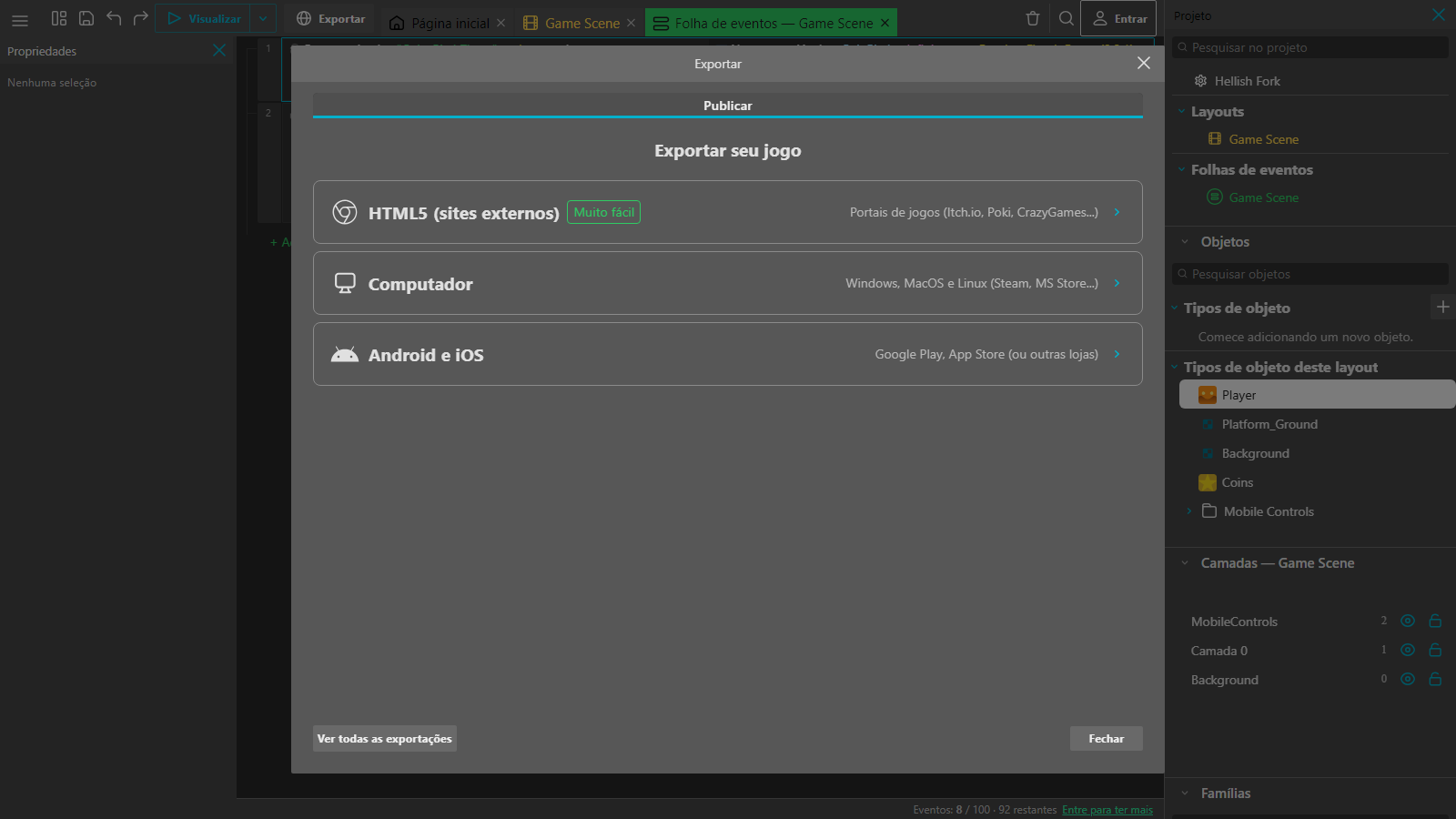
| Option | What for |
|---|---|
| Public gallery | Publish to the Assemble3 gallery (needs a login). |
| HTML5 (external sites) | A web game for portals such as itch.io or your own site. |
| Desktop | Windows, macOS and Linux. |
| Android and iOS | A project for the app stores. |
Publish to the gallery
- Log in to your account.
- Export → Public gallery.
- Fill in the name, description, author, version, category and 1 to 5 tags, and upload the cover image (or use the automatic one).
- Wait for the review. An administrator approves or declines the game, and you get an e-mail with the result.
If you already published the same game, the new version replaces the old one on the same page once approved. Until then, the old one stays playable.
Gallery games live on play.assemble3.com and run isolated from the rest of the site. A high score kept in the browser's local storage works, but use a unique key name for your game.
Export to other sites
HTML5 builds a folder with the game. Upload the .zip to a game portal or to a web host.
Note: online scoreboards only work in games published to the gallery. In games exported to other sites, scores are not saved.
The Assemble3 logo
Exported games show the Assemble3 logo at startup. Premium accounts can hide it in the project properties.
Before publishing
- Test with the Preview button from start to finish.
- Test with the keyboard and with touch, if it will be played on phones.
- Check the texts and sounds: these games are for school and a general audience, with no violent or improper content.
- Only use images, sounds and fonts you made or that have a free licence.