 Assemble3
The editor interface
A tour of the editor's areas, using the Platformer example.
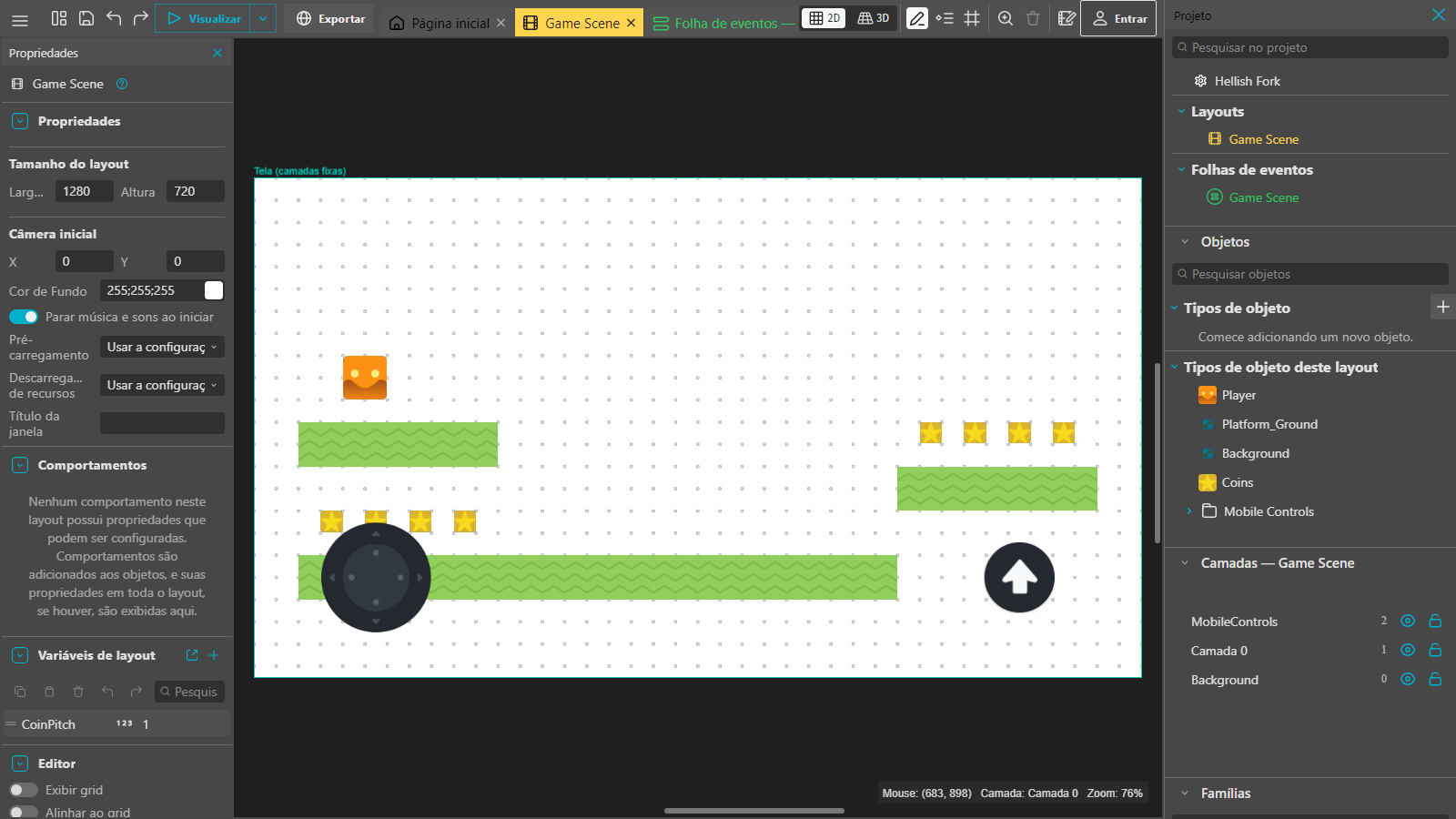
Top bar
- ☰ opens the main menu. Next to it are save, undo and redo.
- Preview runs the game now, in another tab. The arrow beside it has more preview options.
- Export builds the game for publishing. See Export and publish.
- The tabs show what is open: the Start page, the layout and its event sheet.
Layout (the scene)
This is where you place objects. Drag objects from the list onto the canvas, then move, resize and rotate them. Each object placed in the scene is an instance.
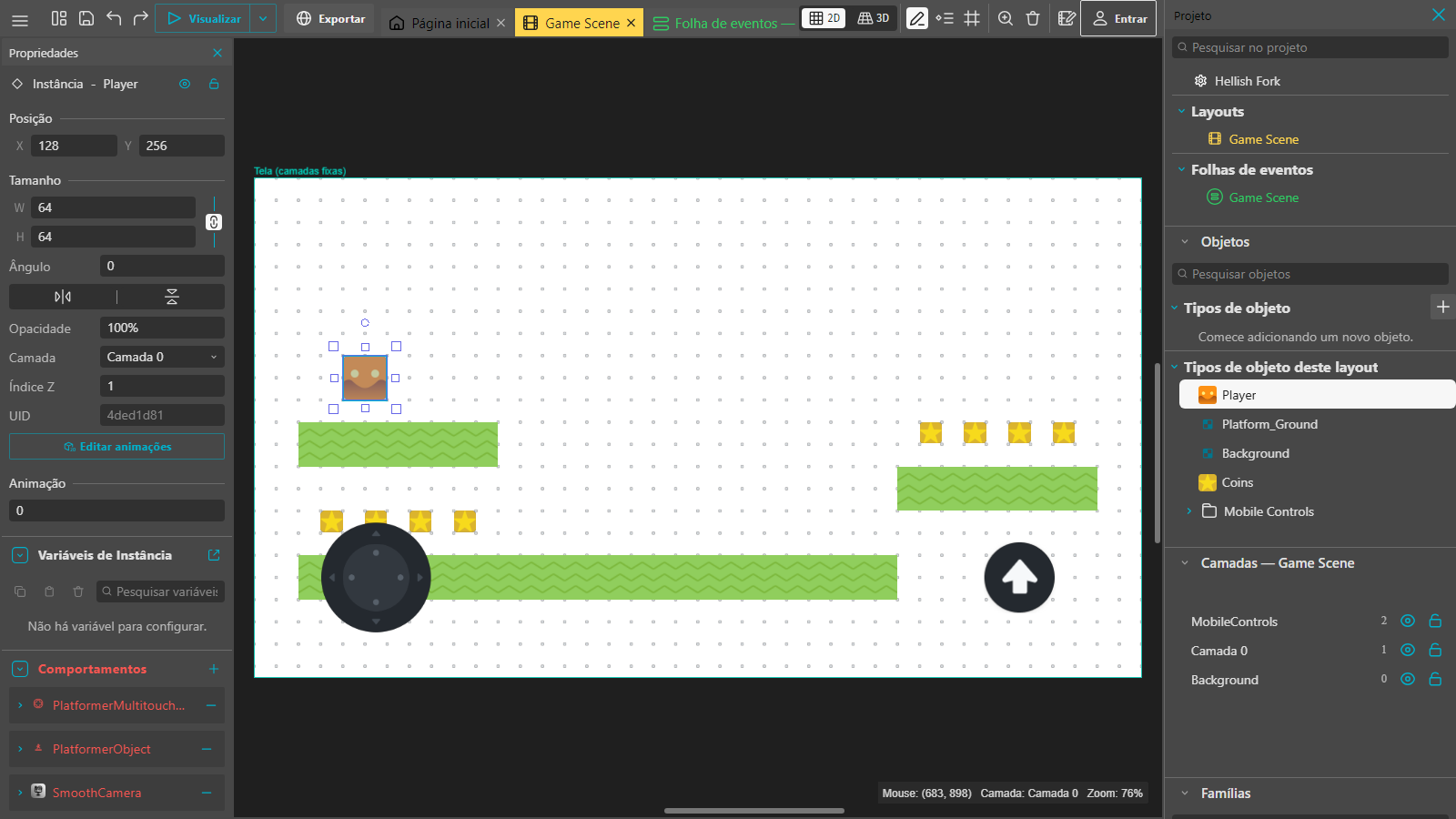
Click an instance and the left panel shows its position, size, angle, layer and behaviors:
Project panel (right)
- Layouts and Event sheets: the game's levels and menus, with the logic of each.
- Object types: every object in the project. Double-click one to edit it.
- Layers: drawing order and cameras. See Layers and camera.
- Families: groups of objects that act together.
- Global variables and Project properties.
Event sheet
Open the layout's Event sheet tab. Each row is an event: conditions on the left and actions on the right.
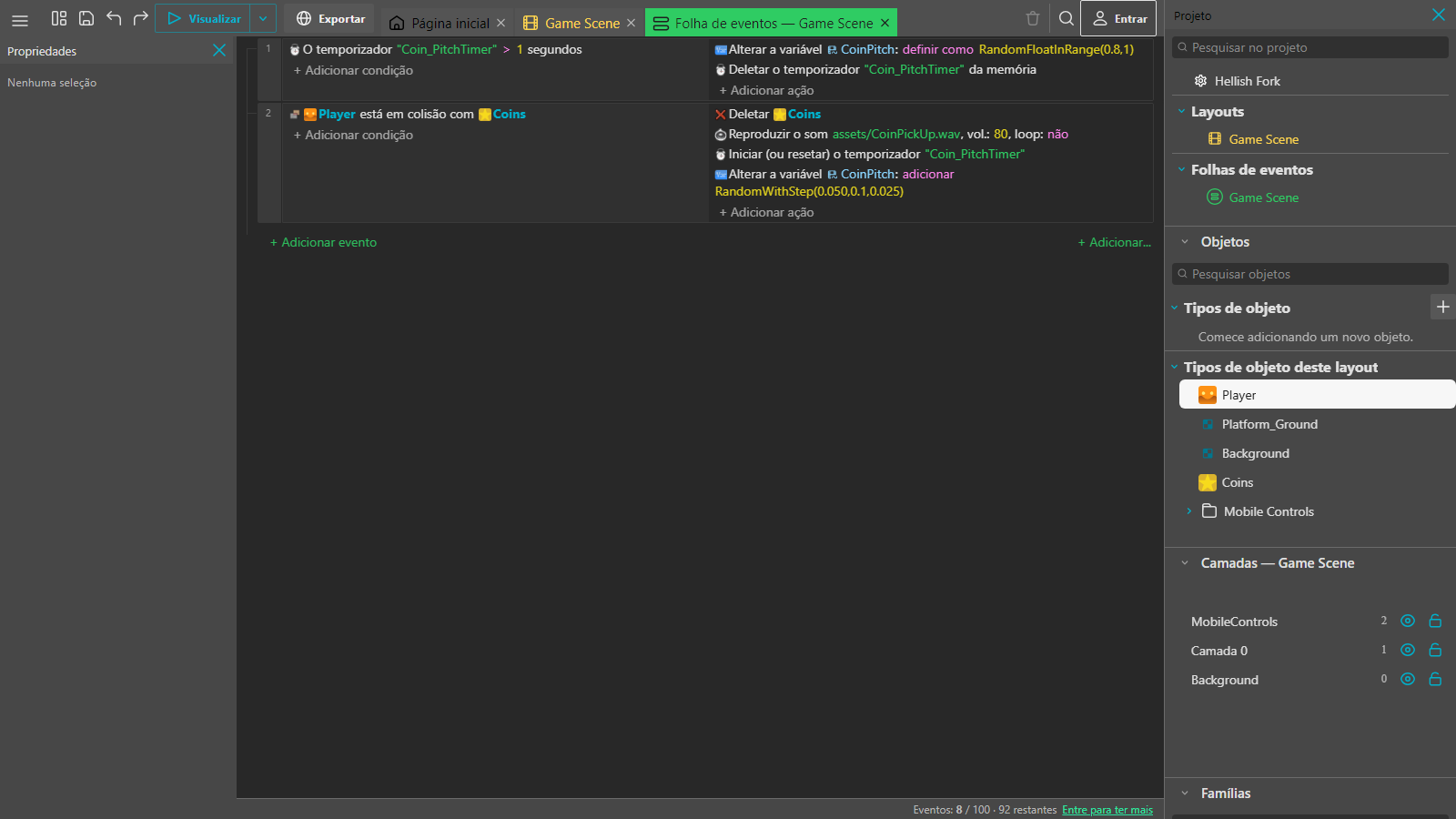
Use + Add event to create a row, then + Add condition and + Add action to fill it in. The footer shows how many events you have used of your plan's limit.
Object editor
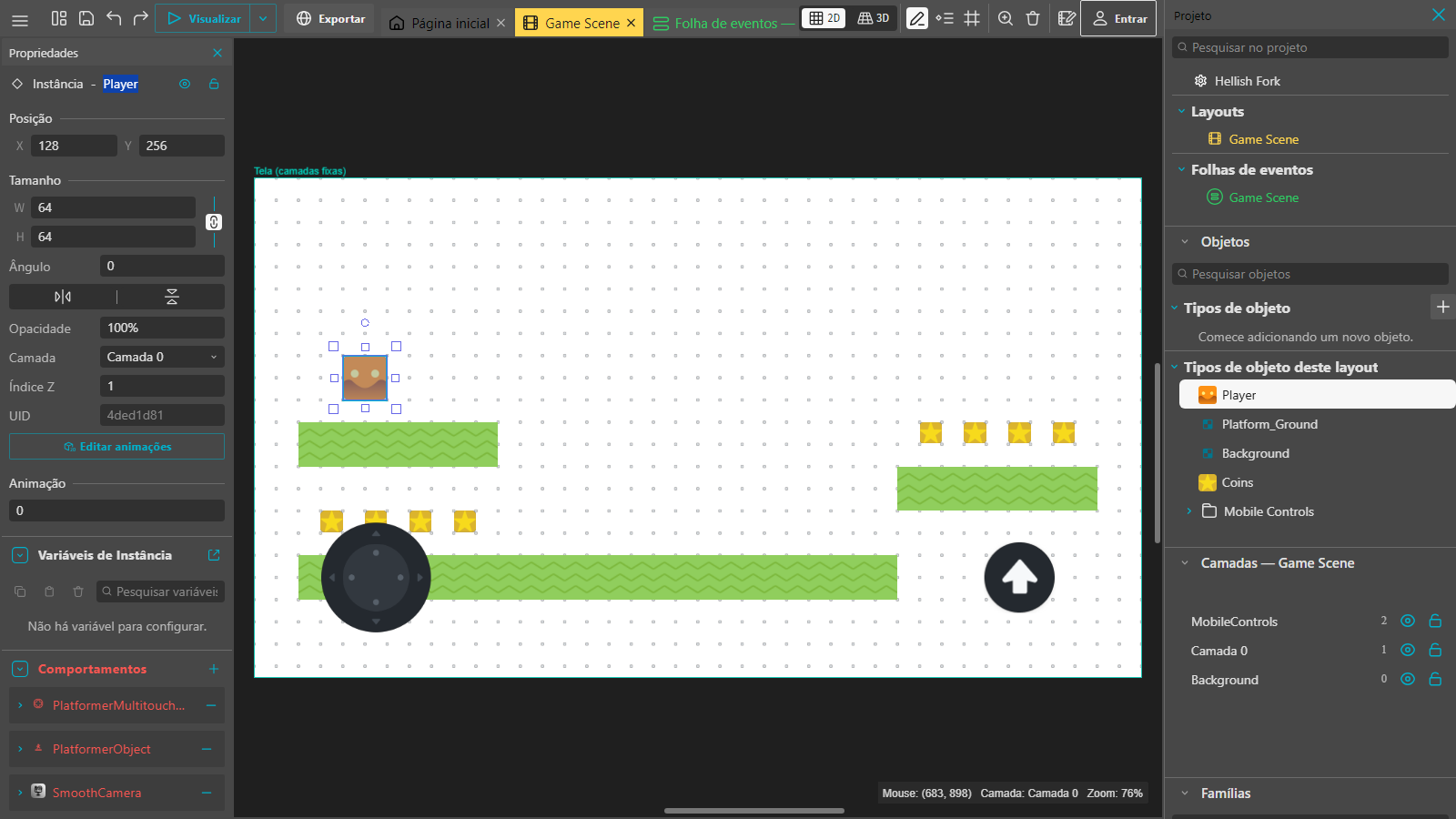
Double-click an object to open its window, with the Properties (animations and images), Behaviors, Variables and Effects tabs.
Next: make your first game.